
Supercharge Your Home Wi-Fi: Proven Tips for Boosting Internet Speed & Performance
Are you tired of sluggish downloads, buffering streams, and frustrating video calls? In today's hyper-connected world, a fast, reliable Wi-Fi connection is no longer a luxury—it's a necessity. If you're searching for effective tips for improving Wi-Fi speed at home, you've landed in the right place. As professional SEO experts and network optimization specialists, we understand the intricacies of wireless technology and are here to guide you through a comprehensive strategy to significantly enhance your internet connection speed and overall wireless network performance. This guide will equip you with actionable insights, from simple adjustments to advanced configurations, ensuring your home network operates at its peak potential.
Strategic Router Placement: The Foundation of Fast Wi-Fi
The physical location of your Wi-Fi router is arguably the single most critical factor influencing your Wi-Fi signal strength and speed. Think of your router as the heart of your home network; its position dictates how effectively the signal propagates throughout your living space. Many users simply plug their router in where the internet cable enters the house, often in a corner or behind furniture, which can severely impede performance.
Optimal Router Positioning Principles
- Central Location is Key: Place your router as close to the center of your home as possible. This minimizes the distance the signal has to travel to reach all your devices, providing more uniform coverage. Avoid placing it in a basement or attic if you expect strong signals on other floors.
- Elevate Your Router: Wi-Fi signals tend to spread outwards and downwards. Placing your router on a high shelf, a desk, or even mounting it on a wall can significantly improve signal distribution, especially in multi-story homes. Aim for eye-level or higher.
- Avoid Obstructions: Walls, especially concrete or brick, water (like fish tanks), and large metal objects (appliances, filing cabinets) are notorious signal blockers. Keep your router away from these impediments. Line of sight between your router and frequently used devices is ideal for maximum wireless performance.
- Keep Away from Other Electronics: While seemingly harmless, other electronic devices can emit electromagnetic interference. Microwaves, cordless phones, baby monitors, and even some smart home devices can operate on similar frequencies, leading to signal degradation. Maintain a reasonable distance (at least a few feet) between your router and such appliances to prevent device interference.
Minimizing Interference: Clearing the Airwaves for Better Speed
Beyond physical obstructions, your Wi-Fi signal is constantly battling invisible foes: electromagnetic interference from other devices and neighboring Wi-Fi networks. Addressing this can dramatically improve your Wi-Fi speed at home.
Understanding and Mitigating Wireless Interference
- Choose the Right Frequency Band: Most modern routers are dual-band, operating on both 2.4 GHz and 5 GHz frequencies.
- 2.4 GHz Band: Offers broader coverage and penetrates walls better, but is more susceptible to interference from other household devices (cordless phones, microwaves, Bluetooth) and suffers from more network congestion due to many devices using it. It's slower but has better range.
- 5 GHz Band: Provides much faster speeds and less interference, but has a shorter range and struggles to penetrate walls. It's ideal for high-bandwidth activities like streaming 4K video or online gaming when devices are close to the router.
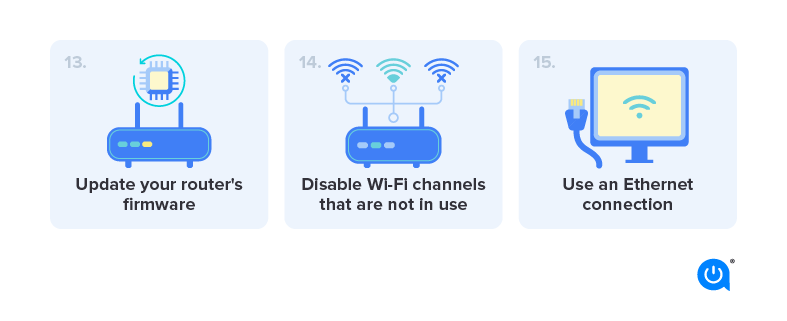
- Change Wi-Fi Channels: Just like roads, Wi-Fi channels can get congested. If your neighbors are all using the same channel, your network will suffer from slowdowns. Most routers automatically select the "best" channel, but this isn't always accurate. You can manually change your Wi-Fi channel in your router's settings. Use a Wi-Fi analyzer app (available for smartphones) to identify the least congested channels in your area. For 2.4 GHz, channels 1, 6, and 11 are non-overlapping and generally recommended. For 5 GHz, there are many more non-overlapping channels, offering greater flexibility.
- Secure Your Network: An unsecured or weakly secured Wi-Fi network is an open invitation for unauthorized users to leech off your bandwidth, leading to significant internet connection speed degradation. Always use WPA2 or WPA3 encryption with a strong, unique password. Regularly change your password and disable WPS (Wi-Fi Protected Setup) if you don't use it, as it can be a security vulnerability.
Optimizing Router Settings: Fine-Tuning for Peak Performance
Your router's administrative interface holds a wealth of settings that can be tweaked to significantly improve your home network performance. Accessing these settings usually involves typing your router's IP address (e.g., 192.168.1.1 or 192.168.0.1) into a web browser.
Advanced Router Configurations for Speed Boosts
- Keep Firmware Updated: Router manufacturers regularly release firmware updates that include performance enhancements, bug fixes, and security patches. An outdated firmware can lead to instability and reduced speeds. Check your router's settings or the manufacturer's website for the latest updates and install them promptly. This is a critical step for maintaining optimal bandwidth optimization.
- Enable Quality of Service (QoS): QoS is a feature found on many modern routers that allows you to prioritize certain types of network traffic. For instance, you can prioritize video streaming or online gaming traffic over background downloads or file transfers. This ensures that your most important activities get the bandwidth they need, preventing lag and buffering. Configure QoS rules based on your household's usage patterns.
- Adjust Transmit Power: Some advanced routers allow you to adjust the transmit power of the Wi-Fi signal. While increasing it might seem like a direct path to better signal, it can also lead to more interference in dense areas. Experiment cautiously, but generally, leaving it at default or slightly increasing it in very large homes might help.
- Disable Old Wireless Standards: If your router supports older Wi-Fi standards like 802.11b or 802.11g, disabling them can sometimes improve performance for newer devices. Modern devices primarily use 802.11n, 802.11ac (Wi-Fi 5), or 802.11ax (Wi-Fi 6). Older standards can slow down the entire network when connected.
- Consider a Wi-Fi Schedule: For some users, setting a schedule to reboot the router automatically once a week can help clear its cache and resolve minor connectivity issues that accumulate over time, leading to more consistent performance.
Hardware Upgrades & Solutions: When Software Isn't Enough
Sometimes, no amount of tweaking software settings can overcome the limitations of outdated or inadequate hardware. Investing in new equipment can be the most impactful way to achieve significant Wi-Fi speed improvements.
Upgrading Your Wi-Fi Infrastructure
- Upgrade Your Router: If your router is several years old, it likely doesn't support the latest Wi-Fi standards (like Wi-Fi 6/802.11ax) or advanced features (like MU-MIMO or OFDMA) designed for efficiency and speed with multiple devices. A new, high-performance router can revolutionize your home Wi-Fi speed. Look for routers with strong processors, ample RAM, and external antennas for better signal broadcasting.
- Consider a Mesh Wi-Fi System: For larger homes or those with dead zones, a single router often isn't enough. Mesh Wi-Fi systems use multiple interconnected nodes placed throughout your home to create a seamless, strong Wi-Fi network that blankets every corner. This eliminates dead spots and ensures consistent speeds, making it an excellent solution for comprehensive coverage. [Discover the best mesh Wi-Fi systems for large homes].
- Utilize Wi-Fi Extenders or Powerline Adapters (with Caution): While not as robust as mesh systems, Wi-Fi extenders or range expanders can boost signal to specific areas. However, they typically halve your bandwidth and can introduce latency. Powerline adapters use your home's electrical wiring to extend network connectivity, offering a stable wired connection where Wi-Fi is weak, which can then be converted back to Wi-Fi. Use these as targeted solutions rather than blanket coverage.
- Upgrade Network Adapters: Even with a fast router, if your devices (laptops, PCs) have old Wi-Fi adapters, they won't be able to utilize the full speed. Consider upgrading your device's wireless adapter to one that supports the latest Wi-Fi standards (e.g., Wi-Fi 6) for maximum compatibility and speed.
- Check Your Internet Service Plan: It's crucial to ensure your internet service provider (ISP) plan actually delivers the speeds you expect. Use online speed tests (e.g., Speedtest.net) to verify the speeds you're receiving directly from your modem (via Ethernet) and compare them to your Wi-Fi speeds. If your wired speeds are also low, the issue might be with your ISP or modem, not just your Wi-Fi setup. [Learn more about choosing the right broadband plan].
Network Management Best Practices: Sustaining Optimal Speed
Maintaining a fast Wi-Fi network isn't a one-time setup; it requires ongoing attention to ensure continued performance and prevent network congestion.
Ongoing Optimization and Troubleshooting
- Limit Bandwidth-Hogging Activities: Identify and manage devices or applications that consume excessive bandwidth. Large file downloads, continuous cloud backups, and multiple simultaneous 4K video streams can quickly saturate your connection. Consider scheduling large downloads for off-peak hours.
- Regular Router Reboots: A simple yet effective tip: occasionally reboot your router. Just like a computer, routers can benefit from a fresh start to clear out temporary glitches and memory leaks that can accumulate over time and degrade performance. A weekly or bi-weekly reboot often helps maintain stable speeds.
- Check for Malicious Software: Viruses, malware, and other unwanted software on your connected devices can secretly consume bandwidth and slow down your entire network. Regularly scan your computers and mobile devices with reputable antivirus software.
- Disable Unused Features: If your router has features like a guest network or USB sharing that you don't use, consider disabling them. While their impact on speed might be minimal, every little bit helps in optimizing your network.
- Consider Ethernet for Stationary Devices: For devices that don't move (desktop PCs, smart TVs, gaming consoles, network-attached storage), a wired Ethernet connection is always superior to Wi-Fi. It provides maximum speed, lowest latency, and frees up valuable wireless bandwidth for mobile devices.
Frequently Asked Questions
What is the difference between 2.4 GHz and 5 GHz Wi-Fi?
The main difference lies in range and speed. The 2.4 GHz band offers wider coverage and better wall penetration but is slower and more prone to interference from other household devices. The 5 GHz band provides significantly faster speeds and less interference but has a shorter range and struggles with physical obstructions. For optimal Wi-Fi speed at home, use 5 GHz for close-range, high-bandwidth activities and 2.4 GHz for devices further away.
How often should I reboot my Wi-Fi router to improve speed?
While there's no strict rule, rebooting your router every week or two can help maintain consistent wireless network performance. A quick power cycle (unplug for 10-15 seconds, then plug back in) clears its cache, resolves minor software glitches, and can refresh your connection to your internet service provider, often leading to a noticeable improvement in internet connection speed.
Can my internet service provider (ISP) limit my Wi-Fi speed?
Your ISP provides the raw internet speed to your home, which is the maximum bandwidth available. Your Wi-Fi network then distributes this bandwidth wirelessly to your devices. While your ISP sets the ceiling for your overall internet connection speed, they don't directly limit your Wi-Fi speed. However, if your ISP plan is too slow for your household's needs, or if there's an issue with your modem or the line coming into your home, your Wi-Fi performance will naturally be capped. Always check your subscribed speed and conduct wired speed tests to rule out ISP-related issues before optimizing your Wi-Fi.

0 Komentar