
How to Encrypt Your Entire Hard Drive on Windows 10: The Ultimate Security Guide
In an increasingly digital world, safeguarding your personal and professional data is paramount. Learning how to encrypt your entire hard drive on Windows 10 is no longer just a recommendation for the tech-savvy; it's a fundamental step towards robust data security. This comprehensive guide will walk you through the process of using Windows 10's built-in BitLocker Drive Encryption, ensuring your sensitive information remains private and protected from unauthorized access, even if your device falls into the wrong hands. Dive in to empower yourself with the knowledge to secure your digital life effectively.
Why Encrypt Your Entire Hard Drive? The Imperative of Data Security
The digital landscape is fraught with risks, from sophisticated cyber threats to the simple, everyday possibility of device theft or loss. Without proper encryption, all the data on your hard drive – your personal photos, financial documents, confidential work files, and browsing history – is an open book to anyone who gains physical access to your computer. This vulnerability underscores the critical need for full disk encryption (FDE).
Consider these compelling reasons to encrypt your entire hard drive:
- Protection Against Theft and Loss: If your laptop is stolen or misplaced, hard drive encryption acts as an impenetrable barrier. Without the correct key or password, the data on the drive will appear as scrambled, meaningless characters, rendering it useless to an unauthorized party. This is a cornerstone of effective data protection.
- Enhanced Privacy: Encryption ensures that your private life remains private. Whether it's personal communications, health records, or sensitive research, FDE prevents prying eyes from accessing your most confidential information.
- Compliance with Regulations: For businesses and professionals, encrypting data is often a requirement for compliance with regulations like GDPR, HIPAA, or CCPA. Implementing BitLocker helps meet these stringent data security standards.
- Defense Against Malware and Ransomware: While not a primary defense against malware, an encrypted drive adds an extra layer of complexity for certain types of attacks, especially those that attempt to directly access or exfiltrate data from the disk.
- Peace of Mind: Knowing that your entire digital life is secured provides unparalleled peace of mind, allowing you to use your Windows 10 device with confidence.
Understanding BitLocker: Windows 10's Built-in Encryption Solution
Windows 10 comes equipped with a powerful security feature called BitLocker Drive Encryption. Developed by Microsoft, BitLocker provides full volume encryption for your entire hard drive, integrating seamlessly with the operating system. It's designed to protect data by encrypting whole volumes and can operate in conjunction with a Trusted Platform Module (TPM) to provide enhanced protection for user data and to ensure that a computer has not been tampered with while the system was offline.
Key Prerequisites for BitLocker Encryption:
- Windows 10 Version: BitLocker is primarily available on Windows 10 Pro, Enterprise, and Education editions. If you have Windows 10 Home, you will need to upgrade to a Pro version or use third-party encryption software, though BitLocker is generally preferred for its seamless integration.
- Trusted Platform Module (TPM): Most modern computers come with a TPM chip, which is a secure cryptoprocessor designed to carry out cryptographic operations. BitLocker can use the TPM to verify the integrity of early boot components and prevent offline attacks. While a TPM is highly recommended for optimal security and ease of use, it is not strictly required. You can configure BitLocker to work without a TPM, though it will require a USB startup key or password at boot.
- Administrator Privileges: You must be logged in as an administrator to enable or manage BitLocker.
Checking Your Windows 10 Version and TPM Status
Before proceeding, it's wise to confirm your system's compatibility:
- Check Windows 10 Version:
- Press
Windows key + Rto open the Run dialog. - Type
winverand press Enter. - A window will appear displaying your Windows edition (e.g., "Windows 10 Pro").
- Press
- Check TPM Status:
- Press
Windows key + Rto open the Run dialog. - Type
tpm.mscand press Enter. - The "Trusted Platform Module (TPM) Management" window will open. Here, you can see if a TPM is present and its status (e.g., "The TPM is ready for use"). If it says "Compatible TPM cannot be found," your system either doesn't have one or it's disabled in the BIOS/UEFI.
- Press
Step-by-Step Guide: How to Encrypt Your Entire Hard Drive in Windows 10 with BitLocker
Follow these meticulous steps to secure your primary system drive with BitLocker.
Step 1: Back Up Your Important Data (Crucial Precaution)
While BitLocker is a reliable process, it's an undeniable best practice to perform a full data backup of all critical files before initiating any major system changes, including disk encryption. This mitigates any unforeseen issues, however rare. Use an external hard drive, cloud storage, or a network drive to store your backup. Think of it as your digital safety net.
Step 2: Accessing BitLocker Drive Encryption
There are a couple of ways to get to the BitLocker settings:
- Via Control Panel:
- Type "Control Panel" into the Windows search bar and open it.
- Navigate to
System and Security > BitLocker Drive Encryption.
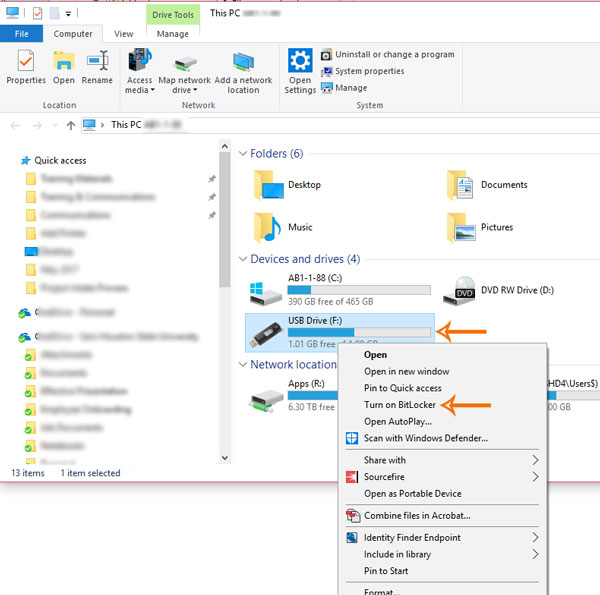
- Via File Explorer:
- Open File Explorer (
Windows key + E). - Right-click on the drive you wish to encrypt (typically your C: drive, labeled "Local Disk (C:)").
- Select "Turn on BitLocker" from the context menu.
- Open File Explorer (
Step 3: Turning On BitLocker for Your Drive
Once you've accessed the BitLocker settings, you'll see a list of your drives. Locate your operating system drive (usually C:) and click "Turn on BitLocker" next to it. BitLocker will then prepare your drive.
Step 4: Choosing How to Unlock Your Drive
This is a critical decision. You'll be presented with options for how you want to unlock your drive each time you boot your computer. The most common and recommended options are:
- Use a password: This is the most straightforward option if you don't have a TPM or prefer a manual unlock. You'll enter this password every time your computer starts. Choose a strong, unique password with a mix of uppercase and lowercase letters, numbers, and symbols.
- Insert a USB flash drive: If you don't have a TPM, you can use a USB drive that contains the startup key. You'll need to insert this USB drive every time you boot. Ensure this drive is kept secure.
- Automatically unlock my drive (if you have a TPM): This is the most convenient option if your system has a TPM. BitLocker will automatically unlock the drive at boot, leveraging the TPM's security features.
Select your preferred method and proceed.
Step 5: Saving Your Recovery Key (ABSOLUTELY CRITICAL)
This is arguably the most important step in the entire process. The BitLocker recovery key is a unique 48-digit numerical password that allows you to regain access to your encrypted drive if you forget your password, lose your USB startup key, or if BitLocker detects a change to your computer's hardware or software that it interprets as a security risk. Without this key, your data will be permanently inaccessible.
You'll be given several options to save your recovery key:
- Save to your Microsoft account: This is convenient, as it stores the key in your online Microsoft account, accessible from any device. Ensure your Microsoft account is also secured with strong passwords and two-factor authentication.
- Save to a file: This will create a text file containing the key. Save this file to an external drive (USB, external HDD) or cloud storage, but never on the drive you are encrypting.
- Print the recovery key: Print a physical copy and store it in a secure, private location (e.g., a safe or secure filing cabinet).
Recommendation: Use at least two of these methods for redundancy. For instance, save to your Microsoft account AND print a physical copy, or save to a file AND print a copy. This is your lifeline to your data.
Step 6: Choosing How Much of Your Drive to Encrypt
You'll have two options here:
- Encrypt used disk space only (faster for new PCs and drives): This option encrypts only the part of the drive that currently contains data. New data written to the drive will be automatically encrypted. This is faster for drives that are mostly empty or brand new.
- Encrypt entire drive (slower but best for PCs and drives in use): This option encrypts all sectors of the drive, including free space. This is the most secure option, as it ensures no residual unencrypted data remains. It's recommended for drives that have been in use for some time.
For maximum data protection, especially on a drive that has been used, select "Encrypt entire drive."
Step 7: Selecting Encryption Mode
You'll choose between two encryption modes:
- New encryption mode (XTS-AES): This is the default and recommended mode for fixed drives on the current Windows version. It offers the strongest encryption.
- Compatible mode (AES-CBC): Use this if the drive might be moved to an older version of Windows (e.g., Windows 7 or 8) that doesn't support the new mode. For internal drives on Windows 10, XTS-AES is superior.
For your primary Windows 10 hard drive, select "New encryption mode (XTS-AES)."
Step 8: Running the BitLocker System Check (Optional but Recommended)
BitLocker will ask if you want to run a BitLocker system check. This check ensures that your computer can read the encryption key correctly before the encryption process begins. It requires a restart. It's highly recommended to perform this check to prevent issues during or after encryption. Click "Continue" and then "Restart now."
Step 9: Starting Encryption
After the restart (if you opted for the system check) or directly after the previous steps, BitLocker will begin the encryption process. This can take a significant amount of time, from several hours to a full day, depending on the size of your hard drive and the amount of data on it. You can continue to use your computer during this process, but performance might be slightly impacted. You'll see a progress bar indicating the status of the encryption.
Once the encryption is complete, your hard drive is fully protected by BitLocker. You've successfully taken a major step in enhancing your cyber security posture.
Managing Your Encrypted Drive After Activation
Once your drive is encrypted, you can manage BitLocker settings via the Control Panel (Control Panel > System and Security > BitLocker Drive Encryption) or by right-clicking the drive in File Explorer.
- Suspend Protection: Temporarily suspend BitLocker (e.g., for system updates or hardware changes) without decrypting the entire drive. This is safer than fully decrypting and re-encrypting.
- Turn Off BitLocker: This will fully decrypt your drive. This process can also take many hours. Only do this if you no longer need the encryption.
- Change Password/PIN: Update your unlock password or PIN for the encrypted drive.
- Back up your recovery key: If you ever lose your initial copies, you can generate and save a new set.
Best Practices and Advanced Considerations for Full Disk Encryption
Beyond the basic setup, consider these expert tips for maintaining robust data protection.
- Secure Your Recovery Key Diligently: The single most critical piece of advice. Your recovery key is the master key to your data. Keep it in multiple secure, off-device locations. Treat it with the same care you would a physical safe key.
- Understand Performance Impact: While modern CPUs have built-in AES instruction sets that minimize the performance hit of encryption, older hardware might experience a slight slowdown. For most users on contemporary Windows 10 machines, the impact is negligible.
- Regularly Update Windows: Microsoft frequently releases updates that include crucial security features and patches. Keeping your Windows 10 system updated ensures that BitLocker and other security components are running with the latest protections against vulnerabilities.
- Consider Secure Boot: If your system supports secure boot in the UEFI firmware, enable it. Secure Boot works in conjunction with BitLocker to prevent malicious software from loading during the startup process, adding another layer of defense against sophisticated rootkit attacks.
- Be Mindful of Multi-Boot Systems: If you run multiple operating systems on your computer, encrypting your Windows 10 drive with BitLocker may complicate the setup. It's generally recommended to encrypt the Windows partition and ensure your bootloader is configured correctly.
- Educate Yourself and Others: Understand the implications of encryption, especially when sharing devices or handling sensitive data. Ensure anyone who needs access to the encrypted data understands the security protocols.
By following these guidelines, you not only learn how to encrypt your entire hard drive on Windows 10 but also adopt a proactive stance towards comprehensive cyber security.
Frequently Asked Questions About Hard Drive Encryption
Does encrypting my hard drive slow down my computer?
For most modern Windows 10 computers, the performance impact of full disk encryption using BitLocker is minimal to negligible. Modern CPUs include dedicated hardware acceleration (AES-NI instructions) that handle the encryption and decryption processes efficiently. While older hardware might experience a slight slowdown, for the vast majority of users, the benefits of enhanced data protection far outweigh any minor performance considerations.
Can I encrypt an external hard drive with BitLocker?
Yes, absolutely. BitLocker is not limited to your internal system drive. You can use BitLocker Drive Encryption to secure external hard drives, USB flash drives, and other removable storage devices. The process is very similar to encrypting an internal drive, ensuring your portable data also benefits from strong drive encryption and remains safe from unauthorized access.
What happens if I lose my BitLocker recovery key?
Losing your BitLocker recovery key can be a critical issue. If you forget your password or your system encounters a problem that triggers the recovery prompt, and you don't have the recovery key, your data will be permanently inaccessible. This is why it is emphasized to save the key in multiple secure locations (Microsoft account, printed copy, external file) immediately after encryption. Without the key, there is no way to bypass the encryption and retrieve your sensitive data.
Is BitLocker secure enough for sensitive data?
BitLocker uses strong encryption algorithms (AES with 128-bit or 256-bit keys, often in XTS-AES mode), which are considered highly secure by cryptographic experts. When properly implemented and combined with a strong password or TPM, BitLocker provides robust data security for most personal and business use cases. However, no security measure is 100% foolproof. For extremely high-security requirements, a multi-layered approach involving additional security protocols and expert consultation might be considered.
Can BitLocker be bypassed?
BitLocker is designed to be highly resistant to bypass attempts. When properly configured with a TPM and secure boot enabled, it provides a strong defense against offline attacks and tampering. However, like any security system, its effectiveness depends on proper implementation and user practices (e.g., using strong passwords, securing the recovery key). Advanced attacks targeting physical vulnerabilities or zero-day exploits could theoretically exist, but for the average user, BitLocker offers an excellent level of protection against common threats like theft or loss.

0 Komentar