
How to Enable Two Factor Authentication on Gmail: The Ultimate Security Guide
In an era where digital security is paramount, knowing how to enable two factor authentication on Gmail is no longer just a recommendation—it's an absolute necessity. Your Gmail account isn't merely an email inbox; it's often the central hub for your entire digital life, linked to banking, social media, shopping, and critical personal data. Protecting this vital gateway from unauthorized access and sophisticated phishing attacks is crucial for your overall online safety. This comprehensive guide will walk you through the process of setting up Google's robust Two-Step Verification, transforming your Gmail security from a single password defense to an impenetrable fortress. Discover how activating this powerful feature can safeguard your sensitive information and provide unparalleled account protection against the ever-evolving threats of the digital world.
Why Your Gmail Account Needs Two-Factor Authentication (2FA)
The digital landscape is fraught with perils, and a simple password, no matter how strong, is often insufficient to deter determined cybercriminals. A data breach at another service, a successful phishing attempt, or even a brute-force attack can compromise your password, leaving your Gmail account vulnerable. This is where Two-Factor Authentication (2FA), also known as Multi-Factor Authentication (MFA) or Two-Step Verification, steps in as an indispensable layer of defense.
Think of 2FA as adding a second, unique lock to your digital door. Even if a malicious actor manages to steal your password, they would still need a second piece of information—something only you possess or can generate—to gain entry. This dramatically reduces the risk of identity theft protection and unauthorized access, ensuring that your private conversations, financial notifications, and personal documents remain secure. Implementing 2FA is a proactive step towards enhancing your overall cybersecurity posture, making it significantly harder for criminals to compromise your most critical online accounts.
The Risks of Not Using 2FA for Gmail
- Password Compromise: Passwords can be stolen through phishing, malware, or exposed in data breaches from other websites where you might have reused credentials. Without 2FA, a stolen password grants immediate access.
- Account Takeover: Once an attacker gains access to your Gmail, they can reset passwords for other linked accounts (banking, social media, shopping), leading to a full-scale account takeover.
- Financial Fraud: Many financial institutions use email for transaction alerts and password resets. A compromised Gmail can lead directly to financial losses.
- Reputational Damage: Attackers can send spam, malicious links, or impersonate you to contacts, damaging your reputation.
- Data Loss & Privacy Invasion: Personal photos, documents, and sensitive communications stored in Google Drive or other integrated services can be accessed, deleted, or exploited.
Understanding Google's Two-Step Verification Methods
Google offers several robust methods for your second verification step, allowing you to choose the balance of convenience and security that best suits your needs. Understanding these options is key to effectively setting up two-step verification Google.
Google Prompt: The Easiest Option
The Google Prompt is often the most convenient and recommended method. When you attempt to sign in to your Google account on a new device, a notification is sent to your trusted Android phone or iPhone (with the Google app installed). You simply tap "Yes" on your phone to confirm the sign-in. This method is highly secure as it relies on a secure push notification rather than a code you have to manually enter, significantly reducing the risk of phishing attacks.
Authenticator App: For Advanced Security
For those seeking robust, offline security, a Google Authenticator app (or a compatible third-party authenticator like Authy) generates unique, time-sensitive verification codes. These codes are generated directly on your device, meaning they work even if you don't have an internet connection or cellular service. After entering your password, you open the app, retrieve the current 6-digit code, and enter it into the sign-in prompt. This method provides excellent account protection and is ideal for users who prioritize maximum security.
Backup Codes: Your Emergency Lifeline
When you enable 2FA, Google provides a set of one-time backup codes. These are crucial for regaining access to your account if you lose your phone, your primary 2FA method is unavailable, or you're otherwise unable to receive verification codes. It's imperative to download, print, and store these codes in a secure, offline location (e.g., a safe, a secure document folder). Each code can only be used once, and you can generate a new set if you run out or suspect they might be compromised. These codes are your last resort for Gmail account recovery.
Security Keys: The Gold Standard of Protection
For the ultimate level of Gmail security, a physical security key (like a YubiKey or Google's Titan Security Key) offers the strongest protection against sophisticated attacks, including advanced phishing. This small USB or Bluetooth device plugs into your computer or pairs with your phone. To sign in, you simply insert or tap the key when prompted. Security keys use cryptographic verification, making them virtually unphishable. They are highly recommended for high-value targets or anyone desiring maximum data breach prevention.
Text Message or Voice Call (SMS/Voice): A Common Alternative (Use with Caution)
While commonly used, receiving verification codes via SMS text message or voice call is generally considered less secure than Google Prompt, authenticator apps, or security keys. SMS codes can be intercepted through SIM-swapping attacks, where criminals trick your carrier into transferring your phone number to a device they control. While it offers a convenient second factor for many, Google itself recommends stronger methods for enhanced online security. It is often provided as a default or fallback option.
Step-by-Step Guide: How to Enable Two Factor Authentication on Gmail
The process of activating 2FA for your Google account (which includes Gmail) is straightforward and can be completed in a few minutes. Follow these instructions carefully to turn on 2FA Gmail and significantly boost your security.
Accessing Your Google Account Security Settings
- Sign in to your Google Account: Open your web browser and go to myaccount.google.com. Make sure you are signed into the specific Google account you wish to secure.
- Navigate to Security: On the left-hand navigation pane, click on "Security." This section is your central hub for managing your Google account's safety features.
- Find "How you sign in to Google": Scroll down to the section titled "How you sign in to Google." Here, you will see "2-Step Verification" listed. If it's not enabled, it will say "Off."
Initiating Two-Step Verification Setup
- Click on "2-Step Verification": Click the "Off" status next to "2-Step Verification."
- Get Started: On the next screen, you'll see an overview of 2-Step Verification. Click the "Get started" button.
- Re-enter Your Password: For security purposes, Google will prompt you to re-enter your password. Do so and click "Next."
Choosing Your Primary Second Step (Google Prompt Recommended)
- Set up Google Prompt: Google will typically suggest Google Prompt as your first method. It will show you a list of eligible devices (your Android phones or iPhones where you're signed into your Google account).
- If you see your device listed: Click "Continue." A test prompt will be sent to your device. Tap "Yes" on your phone to confirm. Once confirmed, click "Turn on" to activate 2FA with Google Prompt as your primary method.
- If you don't see your device or prefer another method first: You can select "Show more options" to choose a different primary method, such as a text message/voice call (though less recommended) or setting up an authenticator app.
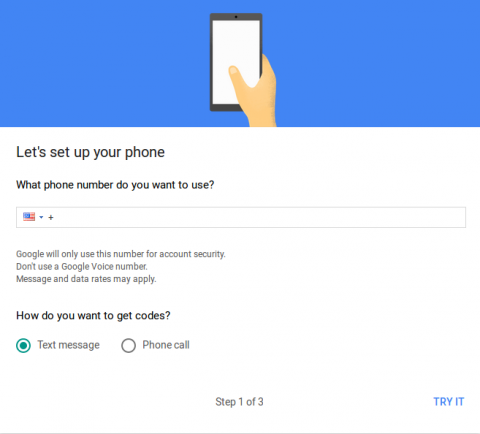
- Verify Phone Number (if using SMS/Voice): If you choose the text message option, you'll be asked to enter your phone number. Google will send a test code via SMS. Enter the code in the prompt to verify your number.
Setting Up Additional Backup Options (Crucial for Recovery)
After enabling your primary 2FA method, Google will guide you through setting up backup options. This step is critically important to prevent account lockout if your primary method becomes unavailable.
- Backup Codes: You will be given the option to generate backup codes. Click "Get backup codes." A list of 10 one-time codes will appear.
- Download: Click the "Download" button to save them as a text file.
- Print: Click the "Print" button to get a physical copy.
- Store Securely: Store these codes in a safe, offline place (e.g., a physical safe, a locked drawer, or a password manager that's securely backed up). Do NOT store them on your computer's desktop or in an easily accessible cloud drive. Remember, each code can only be used once.
- Authenticator App: Even if you chose Google Prompt as primary, you should set up an authenticator app as a secondary option.
- Under "Add more second steps to verify it's you," find "Authenticator app" and click "Set up."
- Follow the on-screen instructions to scan the QR code with your chosen authenticator app (e.g., Google Authenticator, Authy) on your smartphone.
- Enter the 6-digit code generated by the app to confirm setup.
- Security Key: If you own a security key, this is the time to add it.
- Click "Add Security Key" and follow the prompts to register your physical key. This is a highly recommended step for maximum password protection.
Reviewing and Confirming Your Settings
Once you've set up your primary and backup methods, take a moment to review your 2-Step Verification settings page. You'll see which methods are active, and you can add or remove methods as needed. Your Gmail account is now significantly more secure, protected by two layers of authentication. This robust setup makes it extremely difficult for anyone to gain unauthorized access, even if they manage to compromise your password.
Managing and Optimizing Your 2FA Settings
Enabling 2FA is the first step; maintaining and optimizing your settings ensures ongoing Gmail security. Regular review of your 2FA methods is a critical component of strong account protection.
Adding or Removing 2FA Methods
Life circumstances change, and so might your preferred 2FA methods. You can always go back to the "2-Step Verification" section in your Google Account security settings to:
- Add new methods: For instance, if you acquire a security key, you can easily add it.
- Remove old methods: If you lose a phone or stop using a particular authenticator app, it's vital to remove it from your trusted devices to prevent potential vulnerabilities.
- Change primary method: You can adjust which method Google prompts you for first.
Generating New Backup Codes
If you've used some of your backup codes, or if you suspect they might have been compromised (e.g., lost your printed sheet), it's crucial to generate a new set. Doing so invalidates the old codes, ensuring continued online safety. Simply go to the "Backup codes" section under "2-Step Verification" and click "Get new codes." Remember to download, print, and store the new set securely.
Revoking App Passwords for Non-2FA Apps
Some older applications or devices (like certain email clients or older phones) may not support 2FA directly. For these, Google allows you to generate "App Passwords"—unique, 16-digit passwords that grant access only to that specific app/device. If you no longer use an application that required an app password, or if the device is lost or stolen, it's a best practice to revoke that app password immediately from your 2-Step Verification settings to maintain robust password protection.
Regular Security Check-ups
Google offers a "Security Checkup" tool within your Google Account settings (myaccount.google.com/security-checkup). This tool provides personalized recommendations and insights into your security status, including:
- Reviewing recent security activity.
- Checking your saved passwords.
- Managing third-party access to your account.
- Ensuring 2-Step Verification is active and correctly configured.
Troubleshooting Common 2FA Issues and Best Practices
While enabling 2FA significantly enhances security, understanding how to manage potential issues and adhering to best practices is key to a seamless and secure experience. These tips will help you navigate common scenarios and maintain strong online security.
What If You Lose Your 2FA Device?
Losing the device that serves as your primary 2FA method (e.g., your smartphone with Google Prompt or Authenticator app) can be stressful, but it's not the end of the world if you've prepared.
- Use Backup Codes: This is precisely why backup codes are essential. Use one of your pre-generated codes to sign in.
- Use a Secondary 2FA Method: If you set up an alternative like a security key, use that.
- Account Recovery: If you have no backup options, you'll need to go through Google's account recovery process. This can be lengthy and requires you to answer security questions to prove your identity. This is why having multiple 2FA methods and securely stored backup codes is paramount for Gmail account recovery.
- Revoke Lost Device Access: Once you regain access, immediately go to your Google Account security settings, review "Your devices," and sign out of or remove the lost device.
Dealing with Unrecognized Devices
If you receive a Google Prompt or a 2FA code request for a sign-in attempt you didn't initiate, it's a clear warning sign of potential unauthorized access.
- DO NOT approve the sign-in: If it's a Google Prompt, tap "No, it's not me." If it's a code request, simply ignore it.
- Change Your Password Immediately: Even with 2FA, this indicates someone knows your password. Change it to a new, strong, unique password.
- Run a Security Checkup: Use Google's Security Checkup tool to review recent activity and connected apps.
- Report Suspicious Activity: If you suspect a serious attempt, report it to Google through their support channels.
Best Practices for Maintaining Robust Gmail Security
- Never Share Your 2FA Codes: Google will never ask you for your 2FA codes over the phone or email. Any such request is a phishing attack.
- Keep Backup Codes Safe: Store them securely offline, away from your devices. Consider splitting the set and storing them in two different secure locations.
- Regularly Update Your OS and Apps: Ensure your phone's operating system and the Google apps (Gmail, Google app, Authenticator) are always up to date. Software updates often include critical security patches.
- Be Wary of Public Wi-Fi: Avoid accessing sensitive accounts on unsecured public Wi-Fi networks. If you must, use a Virtual Private Network (VPN).
- Educate Yourself on Phishing: Learn to recognize phishing attempts, which often try to trick you into entering your credentials on fake login pages. Always check the URL before entering your password.
- Use a Strong, Unique Password: While 2FA adds a second layer, your primary password protection is still crucial. Use a long, complex, and unique password for your Gmail account. Consider using a reputable password manager.
- Review Account Permissions: Periodically check which third-party apps and services have access to your Google account and revoke access for any you no longer use or don't recognize. This is found under "Third-party apps with account access" in your Google Security settings.
Frequently Asked Questions About Gmail 2FA
What exactly is two-factor authentication (2FA) for Gmail?
Two-factor authentication (2FA), also known as Two-Step Verification for Google accounts, is a security method that requires two distinct forms of identification to verify your identity when you sign in. For Gmail, this means that in addition to your password (something you know), you'll need a second piece of information (something you have, like your phone, or something you are, like a fingerprint, though Google primarily uses "something you have"). This significantly enhances your Gmail security by making it much harder for unauthorized users to access your account, even if they manage to steal your password. It's a critical layer of account protection against various online threats.
Can I use multiple 2FA methods for my Google account?
Absolutely, and it's highly recommended! Google allows you to set up multiple 2FA methods for your account. For instance, you can use Google Prompt as your primary method for convenience, an authenticator app as a reliable backup when offline, and securely store backup codes for emergency access. You might also add a physical security key for the highest level of protection. Having multiple methods ensures you always have a way to access your account, even if one method becomes unavailable (e.g., a lost phone or a dead battery), thereby bolstering your overall online safety.
How do backup codes work, and where should I store them?
Backup codes are one-time-use codes provided by Google when you enable 2-Step Verification. Each code is a unique, 8-digit number that allows you to sign into your account if you can't access your primary 2FA method (e.g., your phone is lost, stolen, or broken). They act as an emergency key for Gmail account recovery. It is crucial to download, print, and store these codes in a very secure, offline location. This could be a fireproof safe, a securely locked drawer, or even a trusted safety deposit box. Avoid storing them digitally on your computer or in an easily accessible cloud storage, as this defeats their purpose as an offline recovery method and could expose them to data breach prevention risks if your primary device is compromised. Remember to generate new codes if you use them all or suspect they've been compromised.
Is a security key truly more secure than an authenticator app?
Yes, a physical security key generally offers a higher level of security than an authenticator app, especially against sophisticated phishing attacks. Authenticator apps rely on time-based codes, which, while secure, can theoretically be phished if a user is tricked into entering the code on a malicious site very quickly after generation. A security key, however, uses cryptographic protocols to verify the legitimate Google site's authenticity before releasing any authentication information. This means it's virtually impossible for a

0 Komentar